Understanding candidate header in session summary report
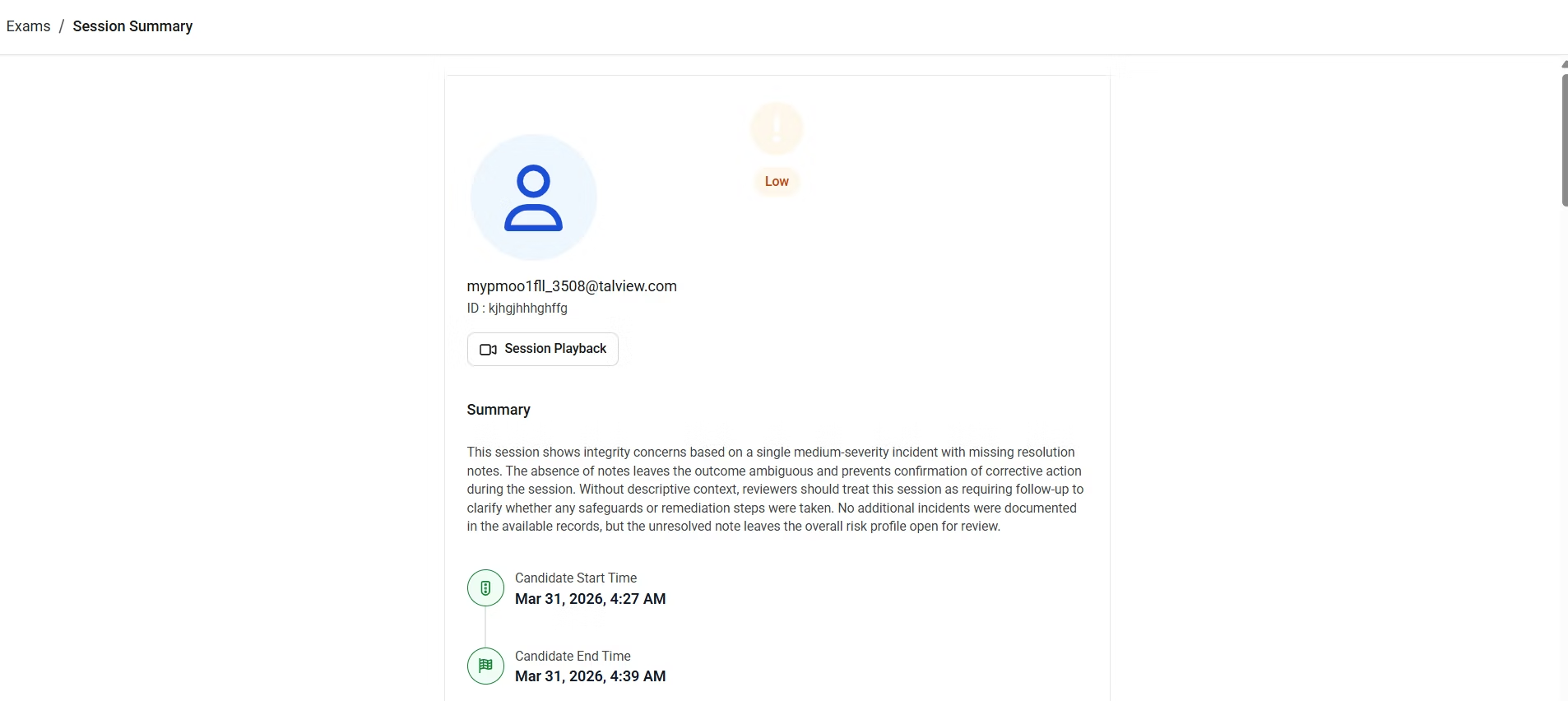
The candidate header appears at the top of every session summary report and gives reviewers an at-a-glance overview of who the candidate is and how their session went.In this article, you will learn what each element in the candidate header means so you can orient yourself quickly before reviewing the details of a session.
Elements of the candidate header
Element
Description
Session integrity outcome
The overall risk level of the session: Needs Review (requires attention) Low (higher risk of integrity incidents) High (lower risk of integrity incidents)
Candidate photo
The candidate’s base image from their first proctored session, used to confirm identity
Candidate name
The candidate’s full name as registered for the exam
Candidate ID
The ID issued by the candidate’s exam organization, also referred to as the external candidate ID
Session playback
A link to open the full session recording
AI-generated summary
A concise summary of candidate verification outcomes, notable incidents, and any unusual behaviors observed during the session
Candidate start and end time
The time the candidate began and completed their proctored exam session
Additional TipsThe session integrity outcome banner is the first thing to check when opening a report. It gives an immediate signal of how much attention the session may need before reviewing individual incidents.
Was this page helpful?
{"docsConfig":{"theme":"mint","$schema":"https://mintlify.com/docs.json","name":"Talview Docs","colors":{"primary":"#1D4ED8","light":"#2059f5","dark":"#1741b3"},"logo":{"light":"https://mintcdn.com/talview-f3acd66d/4nxeCBiNgVZtoctt/logo/light.png?fit=max\u0026auto=format\u0026n=4nxeCBiNgVZtoctt\u0026q=85\u0026s=5c272fb59a6d1ae9d78a98e6ba767eba","dark":"https://mintcdn.com/talview-f3acd66d/4nxeCBiNgVZtoctt/logo/dark.png?fit=max\u0026auto=format\u0026n=4nxeCBiNgVZtoctt\u0026q=85\u0026s=c0ace49b68ee35fc864942b4c5bb93df"},"favicon":"https://mintcdn.com/talview-f3acd66d/auUfq4nfNITfsnOi/favicon.ico?fit=max\u0026auto=format\u0026n=auUfq4nfNITfsnOi\u0026q=85\u0026s=ec54f9b1628c75468c025b6ac0a8db6e","footer":{"socials":{"x":"https://x.com/talview","linkedin":"https://www.linkedin.com/company/talview","website":"https://www.talview.com/"},"links":[{"header":"Resources","items":[{"label":"Our Ethical AI Practices","href":"https://www.talview.com/en/ethical-ai-practices"},{"label":"Zero Code Integration","href":"https://www.talview.com/en/zero-code-integration"},{"label":"Our Integration Partners","href":"https://www.talview.com/en/integrations"}]},{"header":"Support","items":[{"label":"Seven Layer Security Framework","href":"https://www.talview.com/en/seven-layer-security-framework"},{"label":"The Empathy Advantage","href":"https://www.talview.com/en/empathy-advantage"},{"label":"Frequently Asked Questions","href":"https://www.talview.com/en/faq"}]},{"header":"Contact Us","items":[{"label":"Talk to Sales","href":"https://www.talview.com/talk-to-sales?utm_source=docs.talview.com\u0026utm_medium=footer\u0026utm_campaign=talk_to_sales"}]}]},"seo":{"metatags":{"google-site-verification":"-YCNNWMi1t69X2myeM5WhTLU005LRJLmthsEQ59RcRs"}},"integrations":{"mixpanel":{"projectToken":"1c7c27fca7274aadf357a735e3979cc0"}},"contextual":{"options":["copy","view"],"display":"header"},"styling":{"latex":false},"navigation":{"pages":[]}},"deployment":{"deploymentMetadataValue":{"subdomain":"talview-f3acd66d","hasAudioNarration":false,"actualSubdomain":"talview-f3acd66d","customDomains":["docs.talview.com"],"gitSource":{"type":"github","owner":"talview","repo":"docs","deployBranch":"main","contentDirectory":"","isPrivate":true,"mountPath":"","label":""},"feedback":{"thumbs":true},"entitlements":{"AI_CHAT":{"status":"ENABLED"},"WEB_MCP":{"status":"ENABLED"},"NARRATION":{"status":"ENABLED"}},"buildId":"6af6d84d565e709b7529117e","clientVersion":"0.0.4143","searchFilterCounts":[{"language":"default","tag":"Candidates","count":248},{"language":"default","tag":"Hiring Teams","count":212},{"language":"default","tag":"Diagnostics","count":175},{"language":"default","tag":"How-tos","count":159},{"language":"default","tag":"Recruiter","count":132},{"language":"default","tag":"System Diagnostics","count":117},{"language":"default","tag":"Admin","count":109},{"language":"default","tag":"Interviews","count":94},{"language":"default","tag":"Evaluator","count":79},{"language":"default","tag":"Configurations","count":65}],"searchSettings":{"isFiltersEnabled":true}},"assistantConfig":{"enableAskAiButton":true,"enableStarterQuestions":false,"enableAskAiSearchBar":false,"deflection":{"enabled":true,"type":"link","email":"support@talview.com","url":"https://talview.freshdesk.com/support/tickets/new","showHelpButton":true}},"basePath":"","hasChatPermissions":true,"hasWebMcpPermissions":true,"toggles":[{"name":"kill-isr","enabled":true,"variant":{"name":"disabled","enabled":false,"feature_enabled":true},"impressionData":false},{"name":"custom-rbac-roles","enabled":true,"variant":{"name":"disabled","enabled":false,"feature_enabled":true},"impressionData":false},{"name":"agent-mintlify-slack","enabled":true,"variant":{"name":"disabled","enabled":false,"feature_enabled":true},"impressionData":false},{"name":"agent-integrations-settings","enabled":true,"variant":{"name":"disabled","enabled":false,"feature_enabled":true},"impressionData":false},{"name":"rbac-expansion","enabled":true,"variant":{"name":"disabled","enabled":false,"feature_enabled":true},"impressionData":false},{"name":"automations-pr-grouping","enabled":true,"variant":{"name":"disabled","enabled":false,"feature_enabled":true},"impressionData":false},{"name":"custom-prefix","enabled":true,"variant":{"name":"disabled","enabled":false,"feature_enabled":true},"impressionData":false},{"name":"analytics-v7","enabled":true,"variant":{"name":"disabled","enabled":false,"feature_enabled":true},"impressionData":false},{"name":"user-flows-analytics","enabled":true,"variant":{"name":"disabled","enabled":false,"feature_enabled":true},"impressionData":false},{"name":"no-publish-flow","enabled":true,"variant":{"name":"disabled","enabled":false,"feature_enabled":true},"impressionData":false},{"name":"workos-onboarding","enabled":true,"variant":{"name":"disabled","enabled":false,"feature_enabled":true},"impressionData":false},{"name":"snapshot-serving-live","enabled":true,"variant":{"name":"disabled","enabled":false,"feature_enabled":true},"impressionData":false},{"name":"stripTemperatureMiddleware","enabled":true,"variant":{"name":"disabled","enabled":false,"feature_enabled":true},"impressionData":false},{"name":"support-platform-pylon-zendesk","enabled":true,"variant":{"name":"disabled","enabled":false,"feature_enabled":true},"impressionData":false},{"name":"snapshot-serving","enabled":true,"variant":{"name":"disabled","enabled":false,"feature_enabled":true},"impressionData":false},{"name":"instant-rollback","enabled":true,"variant":{"name":"disabled","enabled":false,"feature_enabled":true},"impressionData":false},{"name":"granular-notifications-server","enabled":true,"variant":{"name":"disabled","enabled":false,"feature_enabled":true},"impressionData":false},{"name":"granular-notifications","enabled":true,"variant":{"name":"disabled","enabled":false,"feature_enabled":true},"impressionData":false},{"name":"automations-fable","enabled":true,"variant":{"name":"disabled","enabled":false,"feature_enabled":true},"impressionData":false},{"name":"fixed-ai-action-pricing","enabled":true,"variant":{"name":"disabled","enabled":false,"feature_enabled":true},"impressionData":false},{"name":"automation-resolve-merge-conflict","enabled":true,"variant":{"name":"disabled","enabled":false,"feature_enabled":true},"impressionData":false},{"name":"scoped-publishing","enabled":true,"variant":{"name":"disabled","enabled":false,"feature_enabled":true},"impressionData":false},{"name":"mintql","enabled":true,"variant":{"name":"disabled","enabled":false,"feature_enabled":true},"impressionData":false},{"name":"page-level-analytics","enabled":true,"variant":{"name":"disabled","enabled":false,"feature_enabled":true},"impressionData":false},{"name":"editor-version-history-v2","enabled":true,"variant":{"name":"disabled","enabled":false,"feature_enabled":true},"impressionData":false},{"name":"billing-page-v2","enabled":true,"variant":{"name":"disabled","enabled":false,"feature_enabled":true},"impressionData":false},{"name":"full-page-search","enabled":true,"variant":{"name":"disabled","enabled":false,"feature_enabled":true},"impressionData":false},{"name":"workspace-projects","enabled":true,"variant":{"name":"disabled","enabled":false,"feature_enabled":true},"impressionData":false},{"name":"assistant-v5","enabled":true,"variant":{"name":"disabled","enabled":false,"feature_enabled":true},"impressionData":false},{"name":"fork-pr-previews","enabled":true,"variant":{"name":"disabled","enabled":false,"feature_enabled":true},"impressionData":false},{"name":"revalidation-jwt","enabled":true,"variant":{"name":"disabled","enabled":false,"feature_enabled":true},"impressionData":false},{"name":"workos-sso-scim","enabled":true,"variant":{"name":"disabled","enabled":false,"feature_enabled":true},"impressionData":false},{"name":"hobby-abuse-scan","enabled":true,"variant":{"name":"disabled","enabled":false,"feature_enabled":true},"impressionData":false},{"name":"dashboard-inbox","enabled":true,"variant":{"name":"disabled","enabled":false,"feature_enabled":true},"impressionData":false},{"name":"workos-signup","enabled":true,"variant":{"name":"disabled","enabled":false,"feature_enabled":true},"impressionData":false},{"name":"turbopuffer-dual-write","enabled":true,"variant":{"name":"disabled","enabled":false,"feature_enabled":true},"impressionData":false},{"name":"workos-enabled","enabled":true,"variant":{"name":"disabled","enabled":false,"feature_enabled":true},"impressionData":false},{"name":"approve-review-flow","enabled":true,"variant":{"name":"disabled","enabled":false,"feature_enabled":true},"impressionData":false},{"name":"editor-metadata","enabled":true,"variant":{"name":"disabled","enabled":false,"feature_enabled":true},"impressionData":false},{"name":"sso-setup-deadline-banner","enabled":true,"variant":{"name":"disabled","enabled":false,"feature_enabled":true},"impressionData":false},{"name":"turbopuffer-serve","enabled":true,"variant":{"name":"disabled","enabled":false,"feature_enabled":true},"impressionData":false},{"name":"live-agents","enabled":true,"variant":{"name":"disabled","enabled":false,"feature_enabled":true},"impressionData":false},{"name":"llms-txt-v2","enabled":true,"variant":{"name":"disabled","enabled":false,"feature_enabled":true},"impressionData":false}],"googleFontsInlined":false},"customCss":[],"page":{"pagePath":"center-and-proctor-administration/session-playback/summary-report/how-tos/understanding-candidate-header-in-session-summary-report","slug":"/center-and-proctor-administration/session-playback/summary-report/how-tos/understanding-candidate-header-in-session-summary-report","pageMetadata":{"title":"Understanding candidate header in session summary report","description":null,"href":"/center-and-proctor-administration/session-playback/summary-report/how-tos/understanding-candidate-header-in-session-summary-report","hidden":true},"pageType":"default","mdx":{"mdxSource":{"compiledSource":"\"use strict\";const{Fragment:_Fragment,jsx:_jsx,jsxs:_jsxs}=arguments[0];const{useMDXComponents:_provideComponents}=arguments[0];function _createMdxContent(props){const _components={hr:`hr`,p:`p`,strong:`strong`,tbody:`tbody`,td:`td`,th:`th`,thead:`thead`,tr:`tr`,..._provideComponents(),...props.components},{Heading,OptimizedImage,Table,Tip}=_components;if(!Heading)_missingMdxReference(`Heading`,true);if(!OptimizedImage)_missingMdxReference(`OptimizedImage`,true);if(!Table)_missingMdxReference(`Table`,true);if(!Tip)_missingMdxReference(`Tip`,true);return _jsxs(_Fragment,{children:[_jsx(_components.p,{children:`The candidate header appears at the top of every session summary report and gives reviewers an at-a-glance overview of who the candidate is and how their session went.`}),`\n`,_jsx(_components.p,{children:`In this article, you will learn what each element in the candidate header means so you can orient yourself quickly before reviewing the details of a session.`}),`\n`,_jsx(_components.hr,{}),`\n`,_jsx(Heading,{level:`3`,id:`elements-of-the-candidate-header`,children:`Elements of the candidate header`}),`\n`,_jsx(OptimizedImage,{src:`https://mintcdn.com/talview-f3acd66d/ZXx9tC9jB-WBjzjX/images/image-44.png?fit=max\u0026auto=format\u0026n=ZXx9tC9jB-WBjzjX\u0026q=85\u0026s=06cf3ce8c15f72f65be89e5ac9d450ff`,alt:`Image`,\"data-og-width\":`1906`,width:`1906`,\"data-og-height\":`852`,height:`852`,\"data-path\":`images/image-44.png`,\"data-optimize\":`true`,\"data-opv\":`3`,srcset:`https://mintcdn.com/talview-f3acd66d/ZXx9tC9jB-WBjzjX/images/image-44.png?w=280\u0026fit=max\u0026auto=format\u0026n=ZXx9tC9jB-WBjzjX\u0026q=85\u0026s=41a3e929e995b33f8779d66c508fded6 280w, https://mintcdn.com/talview-f3acd66d/ZXx9tC9jB-WBjzjX/images/image-44.png?w=560\u0026fit=max\u0026auto=format\u0026n=ZXx9tC9jB-WBjzjX\u0026q=85\u0026s=1cc019a0ae9d30c995859e109bf78977 560w, https://mintcdn.com/talview-f3acd66d/ZXx9tC9jB-WBjzjX/images/image-44.png?w=840\u0026fit=max\u0026auto=format\u0026n=ZXx9tC9jB-WBjzjX\u0026q=85\u0026s=58faee97805e98ce7470bfa7111e04c9 840w, https://mintcdn.com/talview-f3acd66d/ZXx9tC9jB-WBjzjX/images/image-44.png?w=1100\u0026fit=max\u0026auto=format\u0026n=ZXx9tC9jB-WBjzjX\u0026q=85\u0026s=dba0eef89c3aa0478fc508ea0a5a83ca 1100w, https://mintcdn.com/talview-f3acd66d/ZXx9tC9jB-WBjzjX/images/image-44.png?w=1650\u0026fit=max\u0026auto=format\u0026n=ZXx9tC9jB-WBjzjX\u0026q=85\u0026s=3aab40fea5178abb3ebfea6c76b96909 1650w, https://mintcdn.com/talview-f3acd66d/ZXx9tC9jB-WBjzjX/images/image-44.png?w=2500\u0026fit=max\u0026auto=format\u0026n=ZXx9tC9jB-WBjzjX\u0026q=85\u0026s=fbaf73daf33a3b879b301aac9ff7d165 2500w`}),`\n`,_jsxs(Table,{children:[_jsx(_components.thead,{children:_jsxs(_components.tr,{children:[_jsx(_components.th,{style:{textAlign:`left`},children:`Element`}),_jsx(_components.th,{style:{textAlign:`left`},children:`Description`})]})}),_jsxs(_components.tbody,{children:[_jsxs(_components.tr,{children:[_jsx(_components.td,{style:{textAlign:`left`},children:_jsx(_components.strong,{children:`Session integrity outcome`})}),_jsxs(_components.td,{style:{textAlign:`left`},children:[`The overall risk level of the session: `,_jsx(`br`,{}),_jsx(_components.strong,{children:`Needs Review`}),` (requires attention)`,_jsx(`br`,{}),_jsx(_components.strong,{children:`Low`}),` (higher risk of integrity incidents)`,_jsx(`br`,{}),_jsx(_components.strong,{children:`High`}),` (lower risk of integrity incidents)`]})]}),_jsxs(_components.tr,{children:[_jsx(_components.td,{style:{textAlign:`left`},children:_jsx(_components.strong,{children:`Candidate photo`})}),_jsx(_components.td,{style:{textAlign:`left`},children:`The candidate’s base image from their first proctored session, used to confirm identity`})]}),_jsxs(_components.tr,{children:[_jsx(_components.td,{style:{textAlign:`left`},children:_jsx(_components.strong,{children:`Candidate name`})}),_jsx(_components.td,{style:{textAlign:`left`},children:`The candidate’s full name as registered for the exam`})]}),_jsxs(_components.tr,{children:[_jsx(_components.td,{style:{textAlign:`left`},children:_jsx(_components.strong,{children:`Candidate ID`})}),_jsx(_components.td,{style:{textAlign:`left`},children:`The ID issued by the candidate’s exam organization, also referred to as the external candidate ID`})]}),_jsxs(_components.tr,{children:[_jsx(_components.td,{style:{textAlign:`left`},children:_jsx(_components.strong,{children:`Session playback`})}),_jsx(_components.td,{style:{textAlign:`left`},children:`A link to open the full session recording`})]}),_jsxs(_components.tr,{children:[_jsx(_components.td,{style:{textAlign:`left`},children:_jsx(_components.strong,{children:`AI-generated summary`})}),_jsx(_components.td,{style:{textAlign:`left`},children:`A concise summary of candidate verification outcomes, notable incidents, and any unusual behaviors observed during the session`})]}),_jsxs(_components.tr,{children:[_jsx(_components.td,{style:{textAlign:`left`},children:_jsx(_components.strong,{children:`Candidate start and end time`})}),_jsx(_components.td,{style:{textAlign:`left`},children:`The time the candidate began and completed their proctored exam session`})]})]})]}),`\n`,_jsxs(Tip,{children:[_jsx(_components.p,{children:_jsx(_components.strong,{children:`Additional Tips`})}),_jsx(_components.p,{children:`The session integrity outcome banner is the first thing to check when opening a report. It gives an immediate signal of how much attention the session may need before reviewing individual incidents.`})]})]})}function MDXContent(props={}){const{wrapper:MDXLayout}={..._provideComponents(),...props.components};return MDXLayout?_jsx(MDXLayout,{...props,children:_jsx(_createMdxContent,{...props})}):_createMdxContent(props)}return{default:MDXContent};function _missingMdxReference(id,component){throw new Error(`Expected `+(component?`component`:`object`)+\" `\"+id+\"` to be defined: you likely forgot to import, pass, or provide it.\")}","frontmatter":{},"scope":{"config":{},"pageMetadata":{"title":"Understanding candidate header in session summary report","description":null,"href":"/center-and-proctor-administration/session-playback/summary-report/how-tos/understanding-candidate-header-in-session-summary-report","hidden":true}}},"mdxSourceWithNoJs":null},"mdxExtracts":{"tableOfContents":[{"title":"Elements of the candidate header","slug":"elements-of-the-candidate-header","depth":3,"children":[]}],"codeExamples":{}},"jsLinks":[],"subdomain":"talview-f3acd66d","siteName":"Talview Docs","title":"Understanding candidate header in session summary report - Talview Docs","navMaps":{"firstHrefInVersion":{},"firstHrefInLanguage":{}},"lastModified":"2026-11-05T07:16:21.748Z","originalFileLocation":"center-and-proctor-administration/session-playback/summary-report/how-tos/understanding-candidate-header-in-session-summary-report.mdx"},"headHtml":"\u003cscript data-mint-head>(function(){var d=document.documentElement,p=null;if(!p){try{p=localStorage.getItem(\"isDarkMode\")}catch(e){}if(p==='true')p='dark';else if(p==='false')p='light';if(p!=='light'\u0026\u0026p!=='dark'\u0026\u0026p!=='system')p=\"system\"}var r=p==='system'?(matchMedia(\"(prefers-color-scheme: dark)\").matches?'dark':'light'):p;d.classList.remove(r==='dark'?'light':'dark');d.classList.add(r);d.setAttribute(\"data-theme-preference\",p)})();\u003c/script>\u003cmeta data-mint-head name=\"application-name\" content=\"Talview Docs\">\u003cmeta data-mint-head name=\"generator\" content=\"Mintlify\">\u003cmeta data-mint-head name=\"robots\" content=\"noindex\">\u003clink data-mint-head rel=\"icon\" type=\"image/png\" sizes=\"192x192\" href=\"/mintlify-assets/_mintlify/favicons/talview-f3acd66d/oP3MBQjW12IuBTni/_generated/favicon/android-chrome-192x192.png\" media=\"(prefers-color-scheme: light)\">\u003clink data-mint-head rel=\"apple-touch-icon\" type=\"image/png\" sizes=\"180x180\" href=\"/mintlify-assets/_mintlify/favicons/talview-f3acd66d/oP3MBQjW12IuBTni/_generated/favicon/apple-touch-icon.png\">\u003clink data-mint-head rel=\"icon\" type=\"image/png\" sizes=\"16x16\" href=\"/mintlify-assets/_mintlify/favicons/talview-f3acd66d/oP3MBQjW12IuBTni/_generated/favicon/favicon-16x16.png\" media=\"(prefers-color-scheme: light)\">\u003clink data-mint-head rel=\"icon\" type=\"image/png\" sizes=\"32x32\" href=\"/mintlify-assets/_mintlify/favicons/talview-f3acd66d/oP3MBQjW12IuBTni/_generated/favicon/favicon-32x32.png\" media=\"(prefers-color-scheme: light)\">\u003clink data-mint-head rel=\"shortcut icon\" type=\"image/x-icon\" href=\"/mintlify-assets/_mintlify/favicons/talview-f3acd66d/oP3MBQjW12IuBTni/_generated/favicon/favicon.ico\" media=\"(prefers-color-scheme: light)\">\u003clink data-mint-head rel=\"icon\" type=\"image/png\" sizes=\"192x192\" href=\"/mintlify-assets/_mintlify/favicons/talview-f3acd66d/oP3MBQjW12IuBTni/_generated/favicon-dark/android-chrome-192x192.png\" media=\"(prefers-color-scheme: dark)\">\u003clink data-mint-head rel=\"icon\" type=\"image/png\" sizes=\"16x16\" href=\"/mintlify-assets/_mintlify/favicons/talview-f3acd66d/oP3MBQjW12IuBTni/_generated/favicon-dark/favicon-16x16.png\" media=\"(prefers-color-scheme: dark)\">\u003clink data-mint-head rel=\"icon\" type=\"image/png\" sizes=\"32x32\" href=\"/mintlify-assets/_mintlify/favicons/talview-f3acd66d/oP3MBQjW12IuBTni/_generated/favicon-dark/favicon-32x32.png\" media=\"(prefers-color-scheme: dark)\">\u003clink data-mint-head rel=\"shortcut icon\" type=\"image/x-icon\" href=\"/mintlify-assets/_mintlify/favicons/talview-f3acd66d/oP3MBQjW12IuBTni/_generated/favicon-dark/favicon.ico\" media=\"(prefers-color-scheme: dark)\">\u003cmeta data-mint-head property=\"og:title\" content=\"Understanding candidate header in session summary report - Talview Docs\">\u003cmeta data-mint-head property=\"og:site_name\" content=\"Talview Docs\">\u003cmeta data-mint-head property=\"og:url\" content=\"https://docs.talview.com/center-and-proctor-administration/session-playback/summary-report/how-tos/understanding-candidate-header-in-session-summary-report\">\u003cmeta data-mint-head property=\"og:type\" content=\"website\">\u003cmeta data-mint-head property=\"og:image\" content=\"https://talview-f3acd66d.mintlify.site/_mintlify/api/og/v2?division=How-Tos\u0026amp;title=Understanding+candidate+header+in+session+summary+report\u0026amp;theme=5b66fb222366f85e7af7a47f\u0026amp;signature=ccadefb8e2a0680ba03ea976a75ea78722bb6918086d4da134507c32b604a2b5\">\u003cmeta data-mint-head property=\"og:image:width\" content=\"1200\">\u003cmeta data-mint-head property=\"og:image:height\" content=\"630\">\u003cmeta data-mint-head name=\"twitter:card\" content=\"summary_large_image\">\u003cmeta data-mint-head name=\"twitter:title\" content=\"Understanding candidate header in session summary report - Talview Docs\">\u003cmeta data-mint-head name=\"twitter:image\" content=\"https://talview-f3acd66d.mintlify.site/_mintlify/api/og/v2?division=How-Tos\u0026amp;title=Understanding+candidate+header+in+session+summary+report\u0026amp;theme=5b66fb222366f85e7af7a47f\u0026amp;signature=ccadefb8e2a0680ba03ea976a75ea78722bb6918086d4da134507c32b604a2b5\">\u003cmeta data-mint-head name=\"twitter:image:width\" content=\"1200\">\u003cmeta data-mint-head name=\"twitter:image:height\" content=\"630\">\u003cmeta data-mint-head name=\"msapplication-config\" content=\"/mintlify-assets/_mintlify/favicons/talview-f3acd66d/oP3MBQjW12IuBTni/_generated/favicon/browserconfig.xml\">\u003cmeta data-mint-head name=\"apple-mobile-web-app-title\" content=\"Talview Docs\">\u003cmeta data-mint-head name=\"msapplication-TileColor\" content=\"#1D4ED8\">\u003cmeta data-mint-head name=\"google-site-verification\" content=\"-YCNNWMi1t69X2myeM5WhTLU005LRJLmthsEQ59RcRs\">\u003clink data-mint-head rel=\"canonical\" href=\"https://docs.talview.com/center-and-proctor-administration/session-playback/summary-report/how-tos/understanding-candidate-header-in-session-summary-report\">\u003clink data-mint-head rel=\"alternate\" type=\"application/xml\" href=\"/sitemap.xml\">\u003clink data-mint-head rel=\"alternate\" type=\"text/markdown\" href=\"/center-and-proctor-administration/session-playback/summary-report/how-tos/understanding-candidate-header-in-session-summary-report.md\">\u003cscript data-mint-head type=\"application/ld+json\">{\"@context\":\"https://schema.org\",\"@graph\":[{\"@type\":\"Organization\",\"@id\":\"https://docs.talview.com/#organization\",\"name\":\"Talview Docs\",\"url\":\"https://docs.talview.com\",\"logo\":{\"@type\":\"ImageObject\",\"url\":\"https://mintcdn.com/talview-f3acd66d/4nxeCBiNgVZtoctt/logo/light.png?fit=max\u0026auto=format\u0026n=4nxeCBiNgVZtoctt\u0026q=85\u0026s=5c272fb59a6d1ae9d78a98e6ba767eba\"}},{\"@type\":\"WebSite\",\"@id\":\"https://docs.talview.com#website\",\"name\":\"Talview Docs\",\"url\":\"https://docs.talview.com\",\"publisher\":{\"@id\":\"https://docs.talview.com/#organization\"}},{\"@type\":\"WebPage\",\"@id\":\"https://docs.talview.com/center-and-proctor-administration/session-playback/summary-report/how-tos/understanding-candidate-header-in-session-summary-report#webpage\",\"url\":\"https://docs.talview.com/center-and-proctor-administration/session-playback/summary-report/how-tos/understanding-candidate-header-in-session-summary-report\",\"name\":\"Understanding candidate header in session summary report\",\"dateModified\":\"2026-11-05T07:16:21.748Z\",\"isPartOf\":{\"@id\":\"https://docs.talview.com#website\"},\"breadcrumb\":{\"@id\":\"https://docs.talview.com/center-and-proctor-administration/session-playback/summary-report/how-tos/understanding-candidate-header-in-session-summary-report#breadcrumb\"}},{\"@type\":\"BreadcrumbList\",\"@id\":\"https://docs.talview.com/center-and-proctor-administration/session-playback/summary-report/how-tos/understanding-candidate-header-in-session-summary-report#breadcrumb\",\"itemListElement\":[{\"@type\":\"ListItem\",\"position\":1,\"name\":\"Session Playback\",\"item\":\"https://docs.talview.com/center-and-proctor-administration/session-playback/video-player/how-tos/what-do-the-dots-inside-a-suspicious-moment-mean\"},{\"@type\":\"ListItem\",\"position\":2,\"name\":\"Summary report\",\"item\":\"https://docs.talview.com/center-and-proctor-administration/session-playback/summary-report/how-tos/how-to-view-and-play-an-incidents-video-evidence\"},{\"@type\":\"ListItem\",\"position\":3,\"name\":\"How-Tos\",\"item\":\"https://docs.talview.com/center-and-proctor-administration/session-playback/summary-report/how-tos/how-to-view-and-play-an-incidents-video-evidence\"},{\"@type\":\"ListItem\",\"position\":4,\"name\":\"Understanding candidate header in session summary report\",\"item\":\"https://docs.talview.com/center-and-proctor-administration/session-playback/summary-report/how-tos/understanding-candidate-header-in-session-summary-report\"}]},{\"@type\":[\"Article\",\"TechArticle\"],\"@id\":\"https://docs.talview.com/center-and-proctor-administration/session-playback/summary-report/how-tos/understanding-candidate-header-in-session-summary-report#article\",\"headline\":\"Understanding candidate header in session summary report\",\"name\":\"Understanding candidate header in session summary report\",\"url\":\"https://docs.talview.com/center-and-proctor-administration/session-playback/summary-report/how-tos/understanding-candidate-header-in-session-summary-report\",\"mainEntityOfPage\":{\"@id\":\"https://docs.talview.com/center-and-proctor-administration/session-playback/summary-report/how-tos/understanding-candidate-header-in-session-summary-report#webpage\"},\"dateModified\":\"2026-11-05T07:16:21.748Z\",\"publisher\":{\"@id\":\"https://docs.talview.com/#organization\"},\"isPartOf\":{\"@id\":\"https://docs.talview.com#website\"}}]}\u003c/script>\u003cscript data-mint-head type=\"application/ld+json\">{\"@context\":\"https://schema.org\",\"@type\":\"WebSite\",\"name\":\"Talview Docs\",\"publisher\":{\"@type\":\"Organization\",\"name\":\"Talview Docs\"},\"provider\":{\"@type\":\"Organization\",\"name\":\"Mintlify\",\"url\":\"https://mintlify.com\"}}\u003c/script>","agentPointerHref":"/center-and-proctor-administration/session-playback/summary-report/how-tos/understanding-candidate-header-in-session-summary-report.md","siteName":"Talview Docs","nav":{"global":null,"tabs":[{"tab":"Home","pages":[{"title":"Home","href":""}]},{"tab":"Candidates","pages":[{"title":"Candidates","href":"/candidates/getting-started"}]},{"tab":"Hiring Teams","pages":[{"title":"Hiring Teams","href":"/hiring-teams/getting-started"}]},{"tab":"Content and Exam Admins","pages":[{"title":"Content and Exam Admins","href":"/content-and-exam-admins/getting-started"}]},{"tab":"Center and Proctor Administration","hidden":true,"groups":[{"group":"Welcome","pages":[{"title":"Getting Started - Center and Proctor Management","description":null,"href":"/center-and-proctor-administration/center-getting-started"}]},{"group":"Center Sync","pages":[{"title":"Center Sync — Overview","description":"Understand how center configuration is automatically kept in sync across connected organizations.","href":"/center-and-proctor-administration/center-federation/overview"},{"title":"Publishing a New Center","description":"When you create and activate a new center, it is automatically synced to connected partner organizations.","href":"/center-and-proctor-administration/center-federation/publishing-a-new-center"},{"title":"Updating Center Attributes","description":"Changes to center details — name, location, operating hours, contact info, and more — are automatically synced to partner organizations.","href":"/center-and-proctor-administration/center-federation/updating-center-attributes"},{"title":"Rooms \u0026 Seat Map","description":"Adding, editing, or removing rooms and seats in your center automatically updates the floor plan in connected partner organizations.","href":"/center-and-proctor-administration/center-federation/managing-rooms-and-seats"},{"title":"Schedules \u0026 Capacity Planning","description":"Planning slots and recurring schedules created in your center are automatically mirrored to connected partner organizations.","href":"/center-and-proctor-administration/center-federation/schedules-and-capacity-planning"},{"title":"Cancelling a Schedule","description":"Understand what happens to synced schedules and partner organization slots when you cancel a planning slot.","href":"/center-and-proctor-administration/center-federation/cancelling-a-schedule"},{"title":"Slot Capacity Updates","description":"Changes to room and seat allocations within a capacity slot are synced to partner organizations, keeping available capacity accurate on both sides.","href":"/center-and-proctor-administration/center-federation/slot-capacity-updates"},{"title":"What is Not Synced","description":"Some operational data intentionally stays within each organization. Understand what Center Sync does not share between connected organizations.","href":"/center-and-proctor-administration/center-federation/what-is-not-synced"}]},{"group":"Center Admin","pages":[{"group":"How-Tos","pages":[{"title":"Understanding the Center Dashboard","description":null,"href":"/center-and-proctor-administration/center-admin/how-tos/understanding-the-center-dashboard"},{"title":"How to add a new center","description":null,"href":"/center-and-proctor-administration/center-admin/how-tos/how-to-add-a-new-center"},{"title":"Understanding the Next 14 Days Distribution column","description":null,"href":"/center-and-proctor-administration/center-admin/how-tos/understanding-the-next-14-days-distribution-column"},{"title":"Understanding Center Overview","description":null,"href":"/center-and-proctor-administration/center-admin/how-tos/understanding-center-overview"},{"title":"How to configure center operating hours","description":null,"href":"/center-and-proctor-administration/center-admin/how-tos/how-to-configure-center-operating-hours"},{"title":"How to edit center details","description":null,"href":"/center-and-proctor-administration/center-admin/how-tos/how-to-edit-center-details"},{"title":"How to filter and search within the center tab","description":null,"href":"/center-and-proctor-administration/center-admin/how-tos/how-to-filter-and-search-within-the-center-tab"},{"title":"How to view room capacity","description":null,"href":"/center-and-proctor-administration/center-admin/how-tos/how-to-view-room-capacity"},{"title":"How to assign room and seats to a slot","description":null,"href":"/center-and-proctor-administration/center-admin/how-tos/how-to-assign-room-and-seats-to-a-slot"},{"title":"How to add seats to a room","description":null,"href":"/center-and-proctor-administration/center-admin/how-tos/how-to-add-seats-to-a-room"},{"title":"How to activate or deactivate a center","description":null,"href":"/center-and-proctor-administration/center-admin/how-tos/how-to-activate-or-deactivate-a-center"},{"title":"How to delete a room?","description":null,"href":"/center-and-proctor-administration/center-admin/how-tos/how-to-delete-a-room"},{"title":"How to change room status","description":null,"href":"/center-and-proctor-administration/center-admin/how-tos/how-to-change-room-status"},{"title":"How to add rooms in a center","description":null,"href":"/center-and-proctor-administration/center-admin/how-tos/how-to-add-rooms-in-a-center"},{"title":"How to delete seats in a room","description":null,"href":"/center-and-proctor-administration/center-admin/how-tos/how-to-delete-seats-in-a-room"},{"title":"How to edit room details","description":null,"href":"/center-and-proctor-administration/center-admin/how-tos/how-to-edit-room-details"},{"title":"How to edit seats in a room","description":null,"href":"/center-and-proctor-administration/center-admin/how-tos/how-to-edit-seats-in-a-room"},{"title":"How to edit exam types (PBT/CBT)","description":null,"href":"/center-and-proctor-administration/center-admin/how-tos/how-to-edit-exam-types-pbt-cbt"},{"title":"How to check the address of the center in map?","description":null,"href":"/center-and-proctor-administration/center-admin/how-tos/how-to-check-the-address-of-the-center-in-map"},{"title":"How to export the center data","description":null,"href":"/center-and-proctor-administration/center-admin/how-tos/how-to-export-the-center-data"},{"title":"How to view candidates using Workflow tabs","description":null,"href":"/center-and-proctor-administration/center-admin/how-tos/how-to-view-candidates-using-workflow-tabs"},{"title":"How to perform actions on a candidate from the Workflow tab","description":null,"href":"/center-and-proctor-administration/center-admin/how-tos/how-to-perform-actions-on-a-candidate-from-the-workflow-tab"},{"title":"Understanding Capacity Dashboard","description":null,"href":"/center-and-proctor-administration/center-admin/how-tos/understanding-capacity-dashboard"},{"title":"Understanding the Capacity Tab","description":null,"href":"/center-and-proctor-administration/center-admin/how-tos/understanding-the-capacity-tab"},{"title":"Understanding the Allocation View","description":null,"href":"/center-and-proctor-administration/center-admin/how-tos/understanding-the-allocation-view"},{"title":"Understanding the Seat Allocation view","description":null,"href":"/center-and-proctor-administration/center-admin/how-tos/understanding-the-seat-allocation-view"},{"title":"How to create a planning slot","description":null,"href":"/center-and-proctor-administration/center-admin/how-tos/how-to-create-a-planning-slot"},{"title":"How to search schedules","description":null,"href":"/center-and-proctor-administration/center-admin/how-tos/how-to-search-schedules"},{"title":"How to export capacity data","description":null,"href":"/center-and-proctor-administration/center-admin/how-tos/how-to-export-capacity-data"},{"title":"How to delete a scheduled exam slot","description":null,"href":"/center-and-proctor-administration/center-admin/how-tos/how-to-delete-a-scheduled-exam-slot"},{"title":"How to filter and search within the Capacity tab","description":null,"href":"/center-and-proctor-administration/center-admin/how-tos/how-to-filter-and-search-within-the-capacity-tab"},{"title":"How to assign a Proctor and Proctor Lead to a Capacity slot","description":null,"href":"/center-and-proctor-administration/center-admin/how-tos/how-to-assign-a-proctor-and-proctor-lead-to-a-capacity-slot"},{"title":"Understanding Candidates Dashboard","description":null,"href":"/center-and-proctor-administration/center-admin/how-tos/understanding-candidates-dashboard"},{"title":"How to decline a candidate booking","description":null,"href":"/center-and-proctor-administration/center-admin/how-tos/how-to-decline-a-candidate-booking"},{"title":"How to view candidates for a specific center","description":null,"href":"/center-and-proctor-administration/center-admin/how-tos/how-to-view-candidates-for-a-specific-center"},{"title":"How to report an exam incident for a candidate","description":null,"href":"/center-and-proctor-administration/center-admin/how-tos/how-to-report-an-exam-incident-for-a-candidate"},{"title":"How to update candidate status","description":null,"href":"/center-and-proctor-administration/center-admin/how-tos/how-to-update-candidate-status"},{"title":"How to reassign a candidate's room or seat after check-in","description":null,"href":"/center-and-proctor-administration/center-admin/how-tos/how-to-reassign-a-candidates-room-or-seat-after-check-in"},{"title":"How to access the search command palette in the In-Center platform","description":null,"href":"/center-and-proctor-administration/center-admin/how-tos/how-to-access-the-search-command-palette-in-the-in-center-platform"},{"title":"How to export candidate data","description":null,"href":"/center-and-proctor-administration/center-admin/how-tos/how-to-export-candidate-data"},{"title":"How to manage candidate actions in a session","description":null,"href":"/center-and-proctor-administration/center-admin/how-tos/how-to-manage-candidate-actions-in-a-session"},{"title":"How to check in a candidate","description":null,"href":"/center-and-proctor-administration/center-admin/how-tos/how-to-check-in-a-candidate"},{"title":"How to create a room within a workflow step","description":null,"href":"/center-and-proctor-administration/center-admin/how-tos/how-to-create-a-room-within-a-workflow-step"},{"title":"How to assign a seat to a candidate after check-in","description":null,"href":"/center-and-proctor-administration/center-admin/how-tos/how-to-assign-a-seat-to-a-candidate-after-check-in"},{"title":"How to view a candidate's profile in Center dashboard ","description":null,"href":"/center-and-proctor-administration/center-admin/how-tos/how-to-view-a-candidates-profile-in-center-dashboard"},{"title":"How to mark a candidate as absent","description":null,"href":"/center-and-proctor-administration/center-admin/how-tos/how-to-mark-a-candidate-as-absent"},{"title":"How to filter and search within the candidate tab","description":null,"href":"/center-and-proctor-administration/center-admin/how-tos/how-to-filter-and-search-within-the-candidate-tab"},{"title":"How to add a room to a time slot in the in-center dashboard","description":null,"href":"/how-to-add-a-room-to-a-time-slot-in-the-in-center-dashboard"}]},{"group":"FAQs","pages":[{"title":"Center Admin FAQs","description":null,"href":"/center-and-proctor-administration/center-admin/faqs/center-admin-faqs"}]}]},{"group":"Center Manager or Proctor Lead","pages":[{"group":"How-Tos","pages":[{"title":"How to search for a scheduled slot","description":null,"href":"/center-and-proctor-administration/proctor/how-tos/how-to-search-for-a-scheduled-slot"},{"title":"How to start a scheduled session","description":null,"href":"/center-and-proctor-administration/proctor/how-tos/how-to-start-a-scheduled-session"},{"title":"How to check-in a candidate","description":null,"href":"/center-and-proctor-administration/proctor/how-tos/how-to-check-in-a-candidate"},{"title":"Understanding the Step column","description":null,"href":"/center-and-proctor-administration/proctor/how-tos/understanding-the-step-column"},{"title":"Understanding the Candidate progress","description":null,"href":"/center-and-proctor-administration/proctor/how-tos/understanding-the-candidate-progress"},{"title":"How to suspend a candidate","description":null,"href":"/center-and-proctor-administration/proctor/how-tos/how-to-suspend-a-candidate"},{"title":"Understanding the Candidate profile","description":null,"href":"/center-and-proctor-administration/proctor/how-tos/understanding-the-candidate-profile"},{"title":"How to report an incident","description":null,"href":"/center-and-proctor-administration/proctor/how-tos/how-to-report-an-incident"},{"title":"How to access a candidate's profile","description":null,"href":"/center-and-proctor-administration/proctor/how-tos/how-to-access-a-candidates-profile"},{"title":"Understanding the Candidate check-in flow","description":null,"href":"/center-and-proctor-administration/proctor/how-tos/understanding-the-candidate-check-in-flow"},{"title":"How to view candidates for a specific center","description":null,"href":"/center-and-proctor-administration/center-admin/how-tos/how-to-view-candidates-for-a-specific-center"}]},{"group":"FAQs","pages":[{"title":"Center Manager Or Proctor Lead FAQs","description":null,"href":"/center-and-proctor-administration/center-manager-or-proctor-lead/faqs/center-manager-or-proctor-lead-faqs"}]}]},{"group":"Proctor","pages":[{"group":"How-Tos","pages":[{"title":"How to view your upcoming schedules","description":null,"href":"/center-and-proctor-administration/proctor/how-tos/how-to-view-your-upcoming-schedules"},{"title":"How to search for a scheduled slot","description":null,"href":"/center-and-proctor-administration/proctor/how-tos/how-to-search-for-a-scheduled-slot"},{"title":"How to start a scheduled session","description":null,"href":"/center-and-proctor-administration/proctor/how-tos/how-to-start-a-scheduled-session"},{"title":"How to check-in a candidate","description":null,"href":"/center-and-proctor-administration/proctor/how-tos/how-to-check-in-a-candidate"},{"title":"Understanding the Step column","description":null,"href":"/center-and-proctor-administration/proctor/how-tos/understanding-the-step-column"},{"title":"How to suspend a candidate","description":null,"href":"/center-and-proctor-administration/proctor/how-tos/how-to-suspend-a-candidate"},{"title":"Understanding the Candidate profile","description":null,"href":"/center-and-proctor-administration/proctor/how-tos/understanding-the-candidate-profile"},{"title":"Understanding candidate status types","description":null,"href":"/center-and-proctor-administration/proctor/how-tos/understanding-candidate-status-types"},{"title":"Understanding the Candidate check-in flow","description":null,"href":"/center-and-proctor-administration/proctor/how-tos/understanding-the-candidate-check-in-flow"},{"title":"How to manually report a new incident in the session playback","description":null,"href":"/how-to-manually-report-a-new-incident-in-the-session-playback"},{"title":"How to add an event to an existing incident","description":null,"href":"/how-to-add-an-event-to-an-existing-incident"},{"title":"How to see what events made up an incident","description":null,"href":"/how-to-see-what-events-made-up-an-incident"},{"title":"How to use incident markers to review a candidate’s exam session recording","description":null,"href":"/how-to-use-incident-markers-to-review-a-candidate-s-exam-session-recording"},{"title":"Understanding your assigned sessions list view","description":null,"href":"/understanding-your-assigned-sessions-list-view"},{"title":"How to access the submitted onboarding checks in the video player","description":null,"href":"/how-to-access-the-submitted-onboarding-checks-in-the-video-player"},{"title":"How to view sessions assigned to you for review","description":null,"href":"/how-to-view-sessions-assigned-to-you-for-review"},{"title":"How to use the information panes in the video player","description":null,"href":"/how-to-use-the-information-panes-in-the-video-player"},{"title":"How to join and monitor a session from the proctor console","description":null,"href":"/how-to-join-and-monitor-a-session-from-the-proctor-console"},{"title":"How to warn a candidate for an incident flagged","description":null,"href":"/how-to-warn-a-candidate-for-an-incident-flagged"},{"title":"How to use the monitoring list during an exam session","description":null,"href":"/how-to-use-the-monitoring-list-during-an-exam-session"},{"title":"How to view a candidate’s session preview from the sessions list","description":null,"href":"/how-to-view-a-candidate-s-session-preview-from-the-sessions-list"},{"title":"How to pause a candidate's session from the monitoring dashboard","description":null,"href":"/how-to-pause-a-candidates-session-from-the-monitoring-dashboard"},{"title":"How to suspend a candidate during their session","description":null,"href":"/how-to-suspend-a-candidate-during-their-session"},{"title":"How to use the onboarding and monitoring lists to manage candidates","description":null,"href":"/how-to-use-the-onboarding-and-monitoring-lists-to-manage-candidates"},{"title":"Understanding the candidate grid view in the monitoring dashboard","description":null,"href":"/understanding-the-candidate-grid-view-in-the-monitoring-dashboard"},{"title":"How to view events in the chat pane during a live session","description":null,"href":"/how-to-view-events-in-the-chat-pane-during-a-live-session"},{"title":"How to send a corrective action to a candidate for a flagged incident","description":null,"href":"/how-to-send-a-corrective-action-to-a-candidate-for-a-flagged-incident"},{"title":"How to interpret transition states on candidate tiles in the monitoring dashboard","description":null,"href":"/how-to-interpret-transition-states-on-candidate-tiles-in-the-monitoring-dashboard"},{"title":"How to send a message to all candidates from the monitoring dashboard","description":null,"href":"/how-to-send-a-broadcast-message-to-all-candidates"},{"title":"How to send a message with different formatting","description":null,"href":"/how-to-send-a-message-with-different-formatting"}]},{"group":"FAQs","pages":[{"title":"Proctor FAQs","description":null,"href":"/center-and-proctor-administration/proctor/faqs/proctor-faqs"}]}]},{"group":"Session Playback","pages":[{"group":"Video player","pages":[{"group":"How-Tos","pages":[{"title":"What do the dots inside a suspicious moment mean","description":null,"href":"/center-and-proctor-administration/session-playback/video-player/how-tos/what-do-the-dots-inside-a-suspicious-moment-mean"},{"title":"How to bring a specific video stream into the main view","description":null,"href":"/center-and-proctor-administration/session-playback/video-player/how-tos/how-to-bring-a-specific-video-stream-into-the-main-view"},{"title":"How to view the events within an incident in the side panel","description":null,"href":"/center-and-proctor-administration/session-playback/video-player/how-tos/how-to-view-the-events-within-an-incident-in-the-side-panel"},{"title":"How to submit your review using Recalculate Risk Index","description":null,"href":"/center-and-proctor-administration/session-playback/video-player/how-tos/how-to-submit-your-review-using-recalculate-risk-index"},{"title":"How to dismiss an individual event within an incident","description":null,"href":"/center-and-proctor-administration/session-playback/video-player/how-tos/how-to-dismiss-an-individual-event-within-an-incident"},{"title":"How to change the severity of an incident in session recording","description":null,"href":"/center-and-proctor-administration/session-playback/video-player/how-tos/how-to-change-the-severity-of-an-incident-in-session-recording"},{"title":"How to dismiss an incident","description":null,"href":"/center-and-proctor-administration/session-playback/video-player/how-tos/how-to-dismiss-an-incident"},{"title":"How to view a candidate's 360 Environment Check in the session summary report","description":null,"href":"/center-and-proctor-administration/session-playback/video-player/how-tos/how-to-view-a-candidates-360-environment-scan-in-the-session-summary-report"},{"title":"How to acknowledge an incident in the session recording","description":null,"href":"/center-and-proctor-administration/session-playback/video-player/how-tos/how-to-acknowledge-an-incident-in-the-session-recording"},{"title":"How to access the incidents in the video player","description":null,"href":"/center-and-proctor-administration/session-playback/video-player/how-tos/how-to-access-the-incidents-in-the-video-player"},{"title":"How to use the playback controls in the activity playback","description":null,"href":"/center-and-proctor-administration/session-playback/video-player/how-tos/how-to-use-the-playback-controls-in-the-activity-playback"},{"title":"How to use the session playback controls in the video player","description":null,"href":"/center-and-proctor-administration/session-playback/video-player/how-tos/how-to-use-the-session-playback-controls-in-the-video-player"}]},{"group":"FAQs","pages":[{"title":"Session Video Player FAQs ","description":null,"href":"/center-and-proctor-administration/session-playback/video-player/faqs/session-video-player-faqs"}]}]},{"group":"Summary report","pages":[{"group":"How-Tos","pages":[{"title":"How to view and play an incident's video evidence","description":null,"href":"/center-and-proctor-administration/session-playback/summary-report/how-tos/how-to-view-and-play-an-incidents-video-evidence"},{"title":"How to read the incident summary in the session report","description":null,"href":"/center-and-proctor-administration/session-playback/summary-report/how-tos/how-to-read-the-incident-summary-in-the-session-report"},{"title":"Understanding candidate header in session summary report","href":"/center-and-proctor-administration/session-playback/summary-report/how-tos/understanding-candidate-header-in-session-summary-report"},{"title":"How to open the session recording from the summary report","description":null,"href":"/center-and-proctor-administration/session-playback/summary-report/how-tos/how-to-open-the-session-recording-from-the-summary-report"},{"title":"How to review incident video clips in the summary report","description":null,"href":"/center-and-proctor-administration/session-playback/summary-report/how-tos/how-to-review-incident-video-clips-in-the-summary-report"},{"title":"How to view a candidate's face capture submission in the report","description":null,"href":"/center-and-proctor-administration/session-playback/summary-report/how-tos/how-to-view-a-candidates-face-capture-submission-in-the-report"},{"title":"How to view previous face capture submissions","description":null,"href":"/center-and-proctor-administration/session-playback/summary-report/how-tos/how-to-view-previous-face-capture-submissions"},{"title":"How to view a candidate's submitted photo ID in the report","description":null,"href":"/center-and-proctor-administration/session-playback/summary-report/how-tos/how-to-view-a-candidates-submitted-photo-id-in-the-report"}]},{"group":"FAQs","pages":[{"title":"Session Summary Report FAQs","description":null,"href":"/center-and-proctor-administration/session-playback/summary-report/faqs/session-summary-report-faqs"}]}]}]}]},{"tab":"Releases","pages":[{"title":"Releases","href":"/releasenotes/q4-2026/october-2026-release-updates"}]},{"tab":"Developer Docs","pages":[{"title":"Developer Docs","href":"/sdk/getting-started"}]},{"tab":"Admin","pages":[{"title":"Admin","href":"/admin/configurations/forms/diagnostics/forms-application-missing-from-platform-dashboard"}]}]},"basePath":"","title":"Understanding candidate header in session summary report - Talview Docs","buildId":"dpl_Fyv1NbzwP68g2bEH2Roy98uY1zmE","deploymentId":"dpl_Fyv1NbzwP68g2bEH2Roy98uY1zmE","dynamics":["a74be98ba7"],"chunks":["zoom-image-lightbox-BbK2OBGL.js","lightbox-handle-r17bVUz3.js"]}