

Getting Notified When You’re Added to a Drive
Once a recruiter adds you to a drive, you’ll receive an interview invitation email. This notification confirms and provides quick access to join the interview.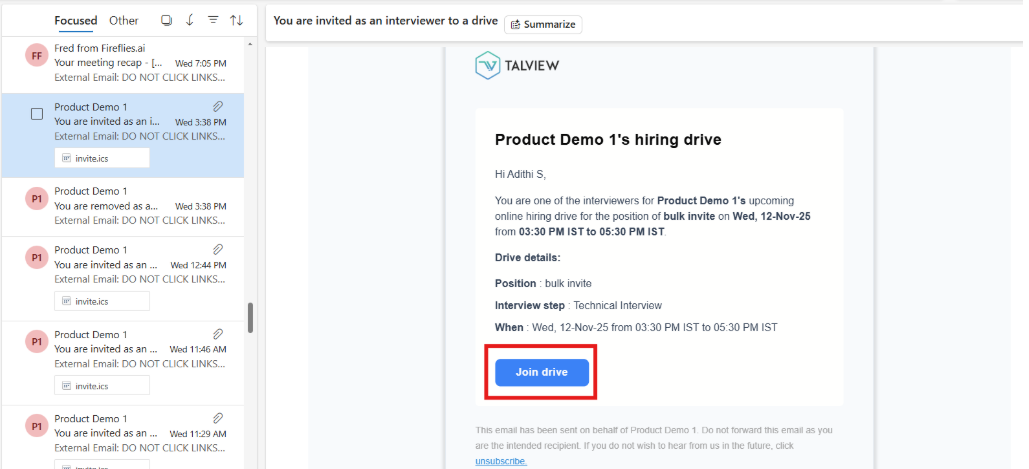
How to Join an Interview?
You can join your assigned interview in two ways:- Click the join link directly from the invitation email
- Navigate to your Interview Dashboard and select the scheduled interview
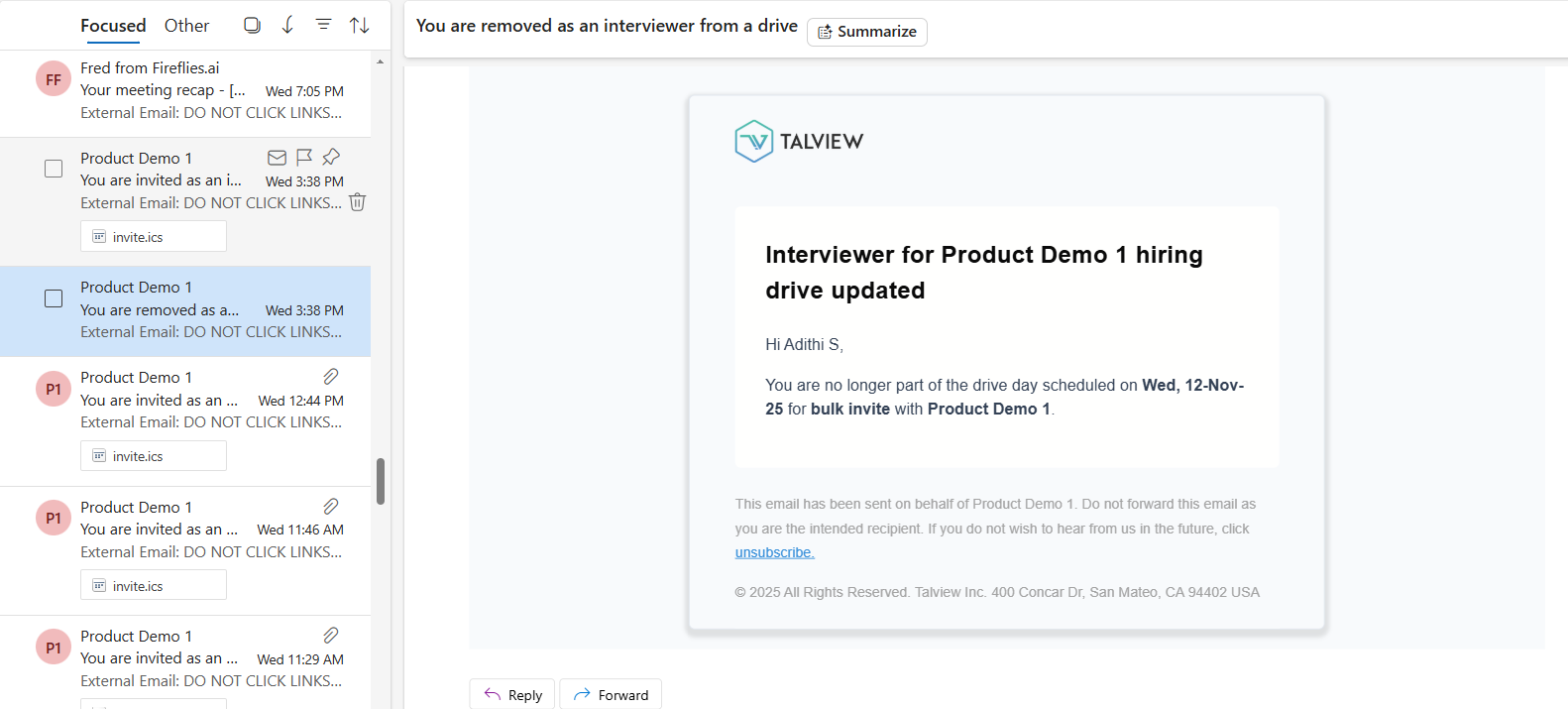
Getting Notified When You’re Removed from a Drive
Managing Your Interview Schedule
To stay on top of your scheduled interviews:- Check your email regularly for interview notifications
- Review your I_nterview Dashboard_ for all scheduled and upcoming interviews
- Update your availability in the system to help coordinators assign drives more effectively